Uscora Google Slide Template: Versatile Presentation Tool
If you have ever spent hours adjusting slide layouts, hunting for matching colors, or resizing images to fit a template, you know how time-consuming presentation design can be. The Uscora Google Slide Template aims to remove that friction by offering a complete set of slides that are ready to use from the start. Instead of starting from a blank canvas, you get a structure that handles the visual heavy lifting while you focus on what matters most—your message.
This template comes with 150 slides organized into five color variations, each with 30 slides. That means you are not stuck with a single look. You can pick the color scheme that fits your brand, your topic, or even your mood. The slides are built on master slides, which keeps formatting consistent and makes global changes easy. If you decide to swap out a heading style or adjust a background, you update once and it applies everywhere.
What Makes the Uscora Google Slide Template Useful
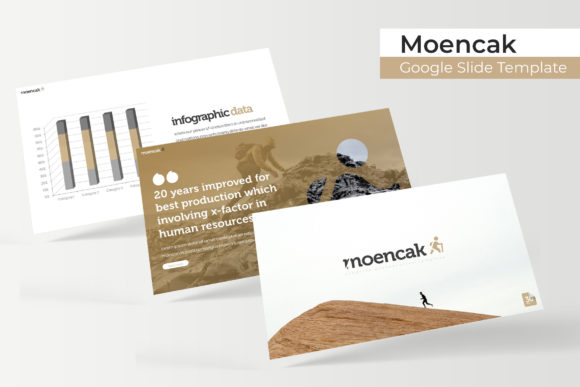
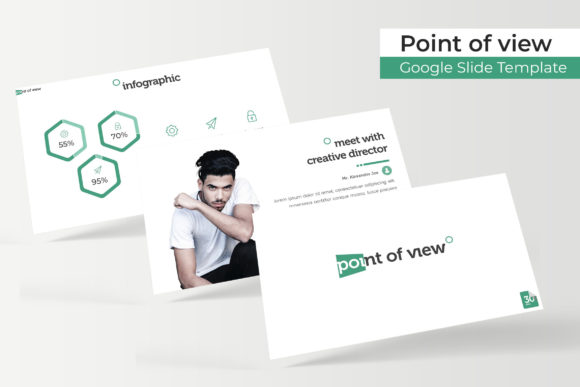
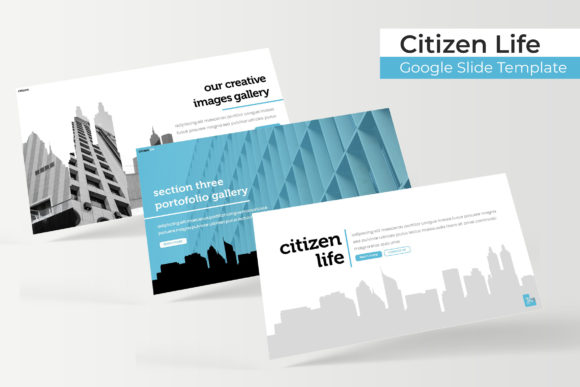
The main appeal of this template lies in its flexibility and the sheer volume of slide types it includes. You get handcrafted infographics that help you present data or processes without needing to create visuals from scratch. Section break slides act as visual pauses between topics, which is useful for longer presentations where you want to guide your audience through a clear narrative. There is also a gallery slide and a portfolio slide, which are helpful if you are showcasing work, products, or client examples.
Every graphic in the template is resizable and editable. You can drag and drop images into picture placeholders, and the layout adjusts around them. This is particularly helpful if you are not experienced with design software. You do not need to crop or resize images manually—the template does the alignment for you. The illustrations are pixel-perfect, meaning they stay sharp whether you are presenting on a laptop screen or a large projector.
Who Benefits from This Template
The Uscora Google Slide Template is designed for a wide range of users. If you are a professional who builds client proposals or internal reports, the template saves you from reinventing the slide deck every time. Freelancers and small business owners can use it to create consistent marketing materials or pitch decks without hiring a designer. Educators and trainers will find the infographics and section breaks useful for structuring lessons or workshops. Bloggers and content creators can repurpose slides for social media posts or video presentations. Even if you are a beginner who has never designed a slide deck before, the template gives you a solid starting point without requiring any technical skills.
Practical Use Cases
Imagine you are an entrepreneur preparing a pitch for potential investors. You need to explain your business model, show market data, present your team, and highlight milestones. With the Uscora Google Slide Template, you can start with the color variation that matches your brand and then populate each slide category. The infographic slides help you visualize growth metrics, the portfolio slide can showcase your product, and the section break slides let you transition smoothly between topics. The entire deck stays visually cohesive because the color palette and typography are already set.
If you are a marketer creating a campaign report for a client, you can use the same template to present campaign performance, audience insights, and recommendations. The resizable graphics make it easy to insert charts and screenshots. The picture placeholders ensure that every image is aligned and sized consistently. This level of polish can make your report look more professional without extra effort.
For educators, the template can be used to structure a semester overview or a workshop series. The section break slides can introduce new modules, while the infographic slides simplify complex concepts. The gallery slide is useful for sharing student work or case studies. Having all these slide types in one template means you do not need to search for different tools or resources.
What Is Included in the Package
When you get the Uscora Google Slide Template, you receive five PPTX files, one for each premade color variation. All files are in widescreen format, which is the standard for most modern displays and projectors. A readme file explains how to install the fonts used in the template, and a link to download the fonts for free is included. This ensures that your presentation looks exactly as intended when you open it on different devices.
It is important to note that the photographs or pictures shown in the preview are not included. They are used only for illustration purposes. This means you will need to supply your own images. The template provides placeholders where you can drop them in. This is a common practice for premium templates, but it is worth keeping in mind when budgeting your time and resources.
Important Considerations Before Using the Template
Before you download and start working with the Uscora Google Slide Template, there are a few things to think about. First, the template is delivered as PPTX files, which are PowerPoint files. Since you are looking for a Google Slide template, you will need to upload these files to Google Drive and convert them. The conversion process usually works well, but you might need to check that all fonts and animations transfer correctly, especially if you plan to use them in a web-based presentation.
Another point is the color variations. With five premade colors, you have options, but if your brand uses a color that is not represented, you may need to do some manual adjustments. The template is editable, so changing colors is possible, but it is not instant. You will need to use the master slides to make global updates efficiently.
Also, consider the slide count. 150 slides sounds like a lot, but they are spread across five color themes, giving you 30 slides per theme. This means each color variation is a complete deck of its own. You are not expected to use all 150 slides in one presentation. Instead, you select the color theme that fits your needs and then customize the 30 slides in that set. This structure is helpful because it prevents you from being overwhelmed by too many choices while still giving you variety for different projects.
Tips for Getting Started
If you are new to using templates, start by opening the readme file first. It will guide you through font installation and basic setup. Then, choose the color variation that best matches your project. Browse through the slides to get a sense of what is available. You do not need to use every slide. Pick the ones that serve your content and delete the rest. The drag-and-drop image placeholders make adding visuals simple. If you need to adjust a graphic, right-click on it and edit the points or colors directly. Because the template is based on master slides, any changes you make to a master slide will update all slides that use that layout. This saves time and keeps your presentation consistent.
Another useful feature is the handcrafted infographics. These are not just static illustrations. You can edit the text, colors, and shapes to match your data. If you are presenting a step-by-step process, an infographic slide can make it more memorable. The section break slides are also worth using because they give your audience a moment to reset between topics. This is especially valuable for presentations that last longer than 20 minutes, as it helps maintain engagement.
Why This Template Appeals to a Broad Audience
The Uscora Google Slide Template brings together features that are often found only in separate tools or premium design software. You get a complete set of slides that cover common presentation needs—from data visualization to portfolio showcases. The pixel-perfect illustrations and resizable graphics mean that the output looks polished, even if you are not a designer. The 5 color variations reduce the risk of your presentation looking generic, while the master slides make updates manageable.
For adults aged 20 to 50 who are balancing work, learning, or creative projects, time is a limited resource. Having a template that handles layout, color, and structure allows you to spend your energy on crafting a clear message. Whether you are a freelancer working on a client pitch, a business owner presenting quarterly results, or a hobbyist sharing a new project, the template supports you without adding complexity.
It is also worth noting that the template is designed to work with free fonts, which removes the need for expensive typeface licenses. This is practical for small business owners and independent creators who are conscious of costs. The included readme file and font download link ensure that you can replicate the exact look of the template without guessing or searching for resources.
In summary, the Uscora Google Slide Template offers a solid foundation for anyone who needs to create presentations quickly and with a professional appearance. The combination of multiple color themes, handcrafted infographics, and editable elements makes it a practical tool for a wide range of personal and professional contexts. By understanding what is included and how to use the features effectively, you can get the most out of the template and focus on delivering a message that resonates with your audience.