Suggest Google Slide Template: A Practical Evaluation for Professional Presentations
When you need to build a presentation quickly without sacrificing visual quality, a structured template can make the difference between a polished deck and a rushed one. The Suggest Google Slide Template is one such option, offering a substantial set of 150 slides organized around five premade color schemes. But as with any presentation resource, the decision to use it depends on how well its strengths align with your specific project requirements, workflow preferences, and audience expectations. This article provides a balanced evaluation of the Suggest Google Slide Template to help you determine whether it is a practical fit for your next presentation.
What the Suggest Google Slide Template Offers
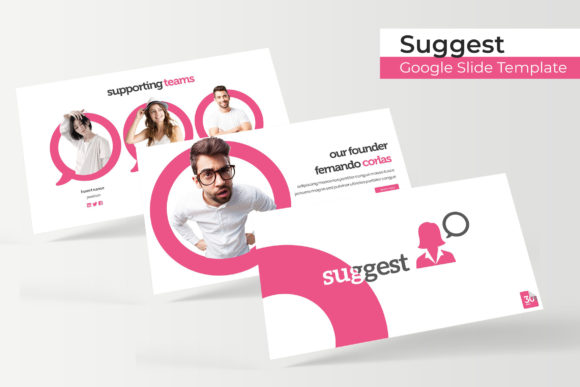
At its core, the Suggest Google Slide Template is a multi-layout presentation kit designed to provide ready-to-use slides across five distinct color variations. Each color variant contains 30 slides, bringing the total to 150 slides. The template is built on Google Slides, but it also includes PowerPoint files, giving you flexibility across platforms. The structure relies on master slides, meaning that design elements such as fonts, colors, and placeholders are defined in the parent slide layouts, allowing for consistent updates across the entire deck when you modify the master.
The template includes handcrafted infographic layouts, section break slides, and dedicated gallery and portfolio slides. Graphics are described as pixel-perfect illustrations, and picture placeholders support drag-and-drop insertion. All graphic elements are resizable and editable, which gives you control over sizing without losing image quality. The package contains five PPTX files (each corresponding to one color scheme), five PPTX widescreen files, a Readme file, and a link to download the free fonts used in the design.
It is important to note that the photographs and pictures shown in the preview are not included. They serve as visual examples of how the template can be used, but you will need to supply your own imagery or source it separately.
The Value of 150 Slides and Five Color Variations
Having 150 slides may sound like more than you need, and for many presentations it will be. However, the volume is not intended to be used in its entirety. Instead, it provides a library of options from which you can select, adapt, and combine. This approach is helpful when you are building a presentation for a client, a stakeholder meeting, or a pitch where you need to show a range of content types without designing each slide from scratch. You can pick the layouts that match your content, discard the rest, and maintain a cohesive look throughout.
The five premade color schemes add another layer of flexibility. If you are presenting to different audiences or working on multiple projects, you can switch color variants without rebuilding your structure. Each of the 30-slide sets within a color scheme covers essential slide types, including titles, content layouts, timelines, charts, and image-heavy slides. This modularity is useful for teams that need to maintain brand consistency while adapting to different contexts.
That said, having five color variations also means you need to choose one and stick with it for each presentation. If you need more than five color options, or if your brand colors fall outside the provided schemes, you may find yourself needing to manually adjust colors across the entire deck. While master slides make global changes easier, significant color overhauls still take time, especially if you are not experienced with editing theme colors in Google Slides or PowerPoint.
Handcrafted Infographics and Visual Elements
One of the more practical features of this template is the inclusion of handcrafted infographic slides. Instead of placing generic charts, the template offers visually designed infographics that can help illustrate data, processes, comparisons, and relationships in a way that standard chart tools often cannot match. For anyone who needs to present complex information clearly, these infographics can reduce the time spent on visual storytelling.
The section break slides serve a different but equally important purpose. They allow you to divide your presentation into logical segments, which helps your audience follow the narrative. In longer decks, section breaks give both you and your viewers a moment to transition between topics. This is a small design choice, but it can noticeably improve the flow of a presentation.
The gallery and portfolio slides are geared toward visual-heavy content. If you are showcasing products, case studies, project portfolios, or team photos, these layouts provide structured grids and image placeholders that keep the design consistent. The drag-and-drop picture placeholders simplify image insertion, but you will still need to source and optimize your images before placing them.
Resizable and Editable Graphics with Master Slide Control
Because all graphics in the template are resizable and editable, you are not locked into fixed sizes. This is important when you need to adjust an illustration to fit a specific layout or emphasize a particular element. The pixel-perfect illustrations are designed to scale without becoming blurry or distorted, which is a practical advantage over lower-resolution clip art or embedded raster images.
Master slides are the backbone of this template. When you edit a master slide, the change applies to every slide that inherits from it. This saves time if you need to update a logo, change a background color, or adjust a font across the entire deck. However, master slides also require some understanding of how they work in Google Slides or PowerPoint. If you are unfamiliar with the concept, you might accidentally override a master setting or apply changes to individual slides that conflict with the master. A brief learning curve exists, especially for users who are accustomed to editing slides individually rather than through parent layouts.
What Is Included and What Is Not
The package includes five PPTX files (one per color scheme), five PPTX widescreen files, a Readme file, and a font download link. The Readme file contains setup instructions and guidance on how to use the template effectively. The fonts used in the design are free for personal and commercial use, but you will need to download and install them separately. This is straightforward but requires an extra step before you begin editing.
As noted earlier, the preview images and photographs are not included. This is standard practice for presentation templates, but it is worth highlighting because the visual impact of your final deck depends heavily on the quality of images you supply. If you do not have access to high-resolution, professionally relevant imagery, the template may look less polished than the preview suggests. The template provides the structure and placeholder system, but the content is your responsibility.
When the Suggest Google Slide Template Is a Strong Fit
This template works well in situations where you need to produce a professional-looking presentation relatively quickly and want to avoid the time cost of designing layouts from scratch. It is especially suitable for:
- Business pitches and proposals: The combination of infographics, section breaks, and portfolio slides gives you a range of layouts suited for presenting company capabilities, data, and case studies.
- Client presentations: Having five color schemes allows you to tailor the look to a client’s brand or to differentiate between different projects you are presenting.
- Internal reports and updates: The consistency provided by master slides ensures that team presentations look cohesive, even when multiple people contribute slides.
- Portfolio showcases: The dedicated gallery and portfolio layouts are designed for visual storytelling, making this a practical choice for designers, photographers, or agencies.
- Workshops and training decks: The section break slides and structured infographics help organize educational content into clear modules.
If you need a large library of slide options and you value design consistency across multiple presentations, the five-color variation approach gives you a head start without requiring you to maintain separate templates for each project.
When Alternatives May Be Worth Considering
Despite its strengths, the Suggest Google Slide Template may not be the best fit for every scenario. Consider alternatives if any of the following apply to you:
- You need a completely custom brand look: If your organization has very specific brand guidelines that fall outside the five provided color schemes, you may spend more time adjusting colors than you would building from a simpler base template or starting with a blank theme.
- You prefer minimal slide libraries: Having 150 slides can feel overwhelming if you prefer to start with a lean set of layouts and build up as needed. Some users find smaller template collections easier to navigate.
- You require extensive animation or interactivity: This template is designed for static slide layouts with placeholder-based graphics. If your presentation relies heavily on custom animations, video integration, or interactive elements, you may need a more specialized tool or a template built specifically for those features.
- Your content is text-heavy with limited visuals: The template leans toward visual and infographic layouts. If your presentation is primarily dense text, many of the design elements may not align with your content structure, and you might be better served by a template focused on clean, minimal text layouts.
- You need seamless real-time collaboration with strict brand controls: While Google Slides supports collaboration, master slides can be inadvertently altered by team members who edit individual slides without understanding the inheritance system. This can lead to design drift over time.
Practical Decision-Making Insights
When evaluating whether this template is right for you, start by considering the type of content you typically present. If your presentations include a mix of data, images, and narrative sections, the variety of infographic and portfolio layouts will likely save you significant design time. If your work is more documentation-oriented, with long text passages and few visuals, you may find the template’s strengths underutilized.
Also consider your comfort level with master slides. If you are willing to spend a short amount of time learning how they work, you can quickly customize the template to match your preferred color palette beyond the five provided options. If you prefer to avoid that learning curve, you can still work within the existing color schemes and achieve consistent results.
Think about the scale of your presentation work. For one-off decks, a smaller, more focused template might be sufficient. For ongoing presentations across multiple projects or clients, the 150-slide library with five color schemes offers a reusable resource that can save time over the long term.
Finally, account for the image sourcing requirement. The template provides the structure, but the visual impact depends on your imagery. If you have access to a library of high-quality photos, or if you are willing to invest time in finding suitable images, the template will serve you well. If image sourcing is a bottleneck, you may want to look for templates that include royalty-free imagery or that use a more icon-based visual style.
Aligning the Template with Your Goals
The Suggest Google Slide Template is a practical option for anyone who values design consistency, slide variety, and time savings when building presentations. Its 150 slides across five color schemes give you a substantial starting point, while the handcrafted infographics, section breaks, and portfolio layouts address common presentation needs. The master slide structure and resizable graphics provide the flexibility to adapt the design to your content rather than the other way around.
At the same time, the template requires you to supply your own images, understand master slide editing, and work within the provided color schemes unless you invest additional time in customization. For users who are comfortable with these requirements and who regularly produce visual, narrative-driven presentations, this template can become a reliable part of your workflow. For those who need a more brand-specific, text-focused, or animation-rich solution, exploring other options may be worthwhile.
By evaluating your content type, your design confidence, and the scale of your presentation needs, you can decide whether the Suggest Google Slide Template aligns with your goals. In many cases, the combination of volume, structure, and editable design makes it a strong candidate for professional presentation work.