Why the Grafity Power Point Template Saves You From Presentation Pitfalls
You have likely been there. Staring at a blank slide, trying to force your ideas into a rigid layout that fights you at every turn. Or worse, you have sat through a presentation where the slides looked like a ransom note made from five different fonts and three clashing color schemes. That is the reality for many people who underestimate how much a solid template matters. The Grafity Power Point Template exists precisely to eliminate those headaches. But simply owning it does not guarantee a polished outcome. People still trip over the same preventable mistakes.
This article walks through the common errors, misunderstandings, and overlooked details that creep in when choosing and using a presentation template like Grafity. More importantly, it gives you the corrections so that your final deck looks intentional, professional, and actually useful to your audience.
Grabbing the First Color Variation Without Testing Context
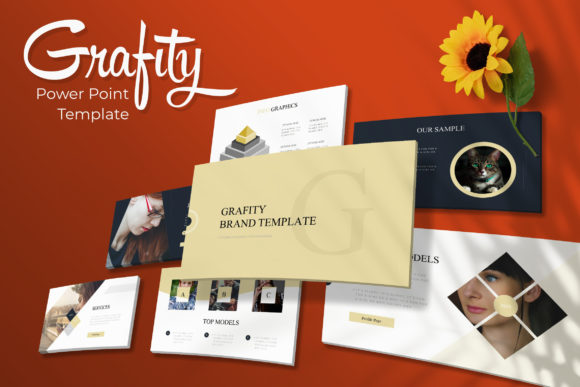
The Grafity Power Point Template comes with five premade colors, and each of those has its own 30-slide set. That means 150 total slides across five color variations. It is generous. It is also a trap if you pick one purely on personal taste without considering where and how you will present.
A common move is to choose a dark, dramatic color scheme because it looks striking on a laptop screen. Then you present in a brightly lit conference room, and the contrast falls apart. Text becomes hard to read, and your data loses impact. The reverse also happens. A pastel variation that looks soft and elegant on screen can appear washed out when projected on a less-than-perfect projector.
What to do instead: Before committing to a color variation, simulate your presentation environment. If you can, test the slides on the actual screen or projector you will use. If that is not possible, err on the side of higher contrast. The premade colors in Grafity are handcrafted, so they are balanced by design. But your lighting conditions still matter. Pick a variation that maintains readability when you step away from your monitor.
Also remember that the five color variations are separate PPTX files. If you are collaborating with a team, decide on the color set early. Switching halfway through means reapplying your content across a different file, and that creates extra work you can avoid with a little foresight.
Overlooking the Master Slides and Breaking Consistency
One of the strongest features of the Grafity Power Point Template is that it is based on Master Slides. This means you can make a global change to fonts, colors, or spacing, and every slide that uses that layout updates automatically. It is a massive time saver. Yet many people ignore the master slide view entirely.
Instead, they manually adjust individual slides. They resize a text box here, nudge an image there, change a bullet style on one slide, and forget to do it on the next fifteen. By the end, the presentation looks like it was assembled by three different people who never talked to each other. The consistency that made the template valuable in the first place is gone.
It is not that manual adjustments are forbidden. The resizable and editable graphics are designed for flexibility. But if you find yourself making the same tweak more than twice, you should be doing it on the master slide.
The better approach: Spend the first fifteen minutes exploring the slide master view. Understand which elements are controlled globally and which are unique to individual slides. If you need a specific layout for a section break, use the dedicated Section Break Slides that come with Grafity. Those are already designed to create visual punctuation in your deck. Do not try to force a content slide into a section break role by manually deleting elements. That is how inconsistencies start.
Ignoring the Image Placeholder Workflow
The Grafity Power Point Template includes picture placeholders with drag-and-drop functionality. This is one of those features that looks simple but completely changes your workflow if you use it correctly. The mistake is to delete the placeholder and insert images the old way, by manually positioning and cropping.
When you drag an image into a properly set up placeholder, it automatically fits the frame. It respects the aspect ratio and cropping that the designer intended. If you bypass that, you lose the alignment that makes the slide look polished. You also introduce inconsistency because your manually placed images will never sit exactly where the placeholder would have put them.
This matters most in the Gallery and Portfolio slides. Grafity includes dedicated slide layouts for showcasing work. If you do not use the placeholders, those slides lose their rhythm. The grid stops feeling intentional, and your portfolio looks like a random collection of pictures rather than a curated showcase.
Practical advice: Always drag your image onto the placeholder icon, not onto the slide background. Let the template do the sizing work. If you need a different crop, adjust it inside the placeholder rather than replacing the placeholder itself. This keeps the structure intact while still giving you control.
Also note that the preview images in the demo are for illustration only. You will supply your own photographs. The placeholders are designed to handle a wide range of image orientations, but extreme panoramas or very tall portraits may need some small adjustments. Test a few images early to see how they behave.
Underestimating the Value of the Section Break Slides
Many presenters treat every slide as a content delivery vehicle. They move from one dense information slide to another with no breathing room. The audience gets fatigued. The presentation blurs together.
The Grafity Power Point Template includes dedicated Section Break Slides. These are not filler. They are functional pauses that signal a shift in topic, a new chapter, or a change in tone. Skipping them or repurposing them into content slides defeats their purpose.
Common misuse: Someone sees a section break slide, thinks "that is a wasted slide," and either deletes it or turns it into a bullet-point slide. The result is a presentation that never lets the audience reset their attention. Better to leave the section breaks in place and use them intentionally. A single slide with a bold title and a visual cue can do more for audience comprehension than five extra bullet slides.
If you feel pressure to reduce slide count, remember that a well-placed section break actually makes your presentation feel more organized, not longer. It signals professionalism. The audience perceives that you have structured your thinking.
Treating All 150 Slides as a Linear Deck
The Grafity Power Point Template includes 150 total slides across five color variations. That is thirty slides per template. Some people see the full set and feel compelled to use every slide type. They end up with a bloated deck that covers too many layouts, most of which do not serve their actual message.
The mistake: Opening the template, browsing all the slide options, and then building a deck by including one of everything. The result is a presentation that lacks focus. It has an infographic slide, a portfolio slide, a timeline, a quote slide, a data chart slide, and a section break, all in the same short deck. The variety becomes noise rather than structure.
The correction: Choose only the slide layouts that directly support your narrative. If you do not need a portfolio section, leave those slides out. If your presentation is heavy on data, pull in the handcrafted infographic slides and skip the decorative ones. The advantage of having thirty slides per variation is that you can select the exact layouts you need for a specific project, not that you must use them all at once.
Think of the template as a toolbox. You do not use every tool in the box on every job. You pick what fits. That selective approach keeps your deck clean and your message clear.
Forgetting About the Fonts Until the Last Minute
The Grafity Power Point Template uses specific fonts to achieve its look. The product includes a readme file with download links for free fonts. But many people skip this step. They open the template, see that it looks correct on their machine because they happen to have the fonts installed, and then send the file to a collaborator who does not have those fonts. The slides break. Text reflows. Layouts shift.
This is a classic collaboration headache that gets blamed on the template when it is actually a font management problem. The template itself is pixel-perfect when used with the intended fonts. The illustrations and graphics are resolution-independent vectors. But text relies on font availability.
How to avoid it: Download and install the fonts from the provided link before you start editing. If you are sharing the file, embed the fonts in the PowerPoint options, or convert critical text to shapes if you need to lock the formatting. The readme file exists for a reason. Do not treat it as optional reading.
If you are a freelancer or agency delivering slides to a client, font embedding is especially important. You cannot control what fonts the client has installed. A presentation that looks perfect on your machine can look broken on theirs. Taking two minutes to embed fonts prevents that entire class of problem.
Misunderstanding the Handcrafted Infographics
The Grafity Power Point Template includes handcrafted infographic slides. These are not auto-generated charts from Excel. They are manually constructed visual elements that you can edit directly in PowerPoint. The mistake people make is treating them as static images rather than editable graphics.
Because they are built from native PowerPoint shapes, you can resize them, recolor them, and change the text without losing quality. But that is only useful if you actually customize them to your data. Dropping in a prebuilt infographic with your own text slapped over it looks lazy. The audience can tell.
Better use: Take the time to adjust the infographic to match your specific numbers and narrative. Change the proportions if needed. Update the colors to align with your chosen variation. The fact that the infographics are handcrafted means they are meant to be molded, not used as-is. Treat them as a starting point, not a final product.
And if you are not comfortable editing complex infographics, practice on a copy first. The resizable and editable nature of these elements means you cannot break them permanently. You can always go back to the original file and start fresh. That safety net is worth taking advantage of.
Choosing Between Widescreen and Standard Without a Plan
The Grafity Power Point Template includes five PPTX files in widescreen format. This is the modern standard. It fits most laptops, monitors, and projectors. But you still occasionally run into situations where a standard 4:3 format is expected, like older conference equipment or internal corporate templates.
The mistake is not checking the aspect ratio requirements before you start building. If you design a beautiful widescreen deck and then find out the presentation will be shown on a 4:3 screen, you end up with black bars or distorted content. The formatting you relied on is compromised.
The fix is simple: Ask about the display equipment before you design. If you know you need standard format, you can adapt, but the provided files are widescreen. If you are presenting on your own laptop, widescreen is almost always the right choice. But if you are sending slides to a client or presenting in an unfamiliar venue, confirm the aspect ratio first. It saves a major headache at the worst possible moment.
Final Takeaway for Anyone Using the Grafity Power Point Template
None of these mistakes are deal-breakers. They are all avoidable with a little awareness. The Grafity Power Point Template is a robust tool, with 150 slides across five color variations, handcrafted infographics, master slide control, and pixel-perfect illustrations. But a tool is only as good as your willingness to use it correctly.
Before you start your next deck, open the readme file, install the fonts, test your color variation in the actual environment, and spend time understanding the master slides. That upfront investment pays back in every slide you create from that point forward. Your audience will notice the difference, even if they cannot name why. That is the mark of a presentation that communicates rather than just decorates.
The five PPTX files give you flexibility. The 30 slides per template give you depth. The premade colors give you speed. Use those advantages intentionally, and you will avoid the common pitfalls that turn a good template into a mediocre presentation.